6. Quickstart - Uninstall a WAPT Package
The purpose of this documentation is to guide you through your first experience with the following steps:
Remove a package dependency from a host.
Uninstall the package from a host.
For more information about the dependency mechanism of WAPT, you can refer to this documentation.
Note
If a package is installed on a workstation, removing a dependency will not uninstall the package itself.
To uninstall a package from multiple workstations, you must explicitly uninstall it.
6.1. Remove a package dependency from a host
Open the WAPT Console.
Navigate to the Packages Inventory tab.
Right-click → Edit Host.
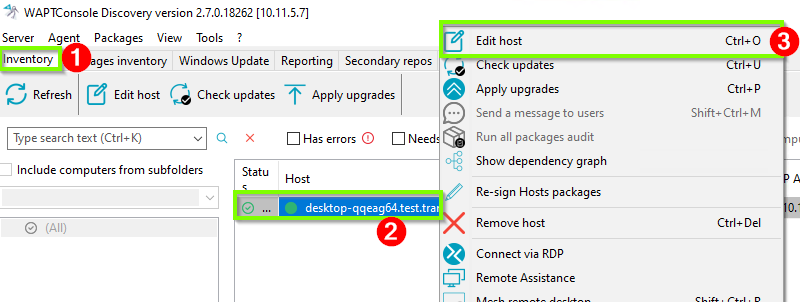
In the Edit Host window:
Select the package you want to remove the dependency from in the left-side list (e.g., wapt-vlc). (1)
Right-Click on the desired package → Remove Dependency. (2)
The package will disapear in the left-side list.
Click Save and Apply. (3)
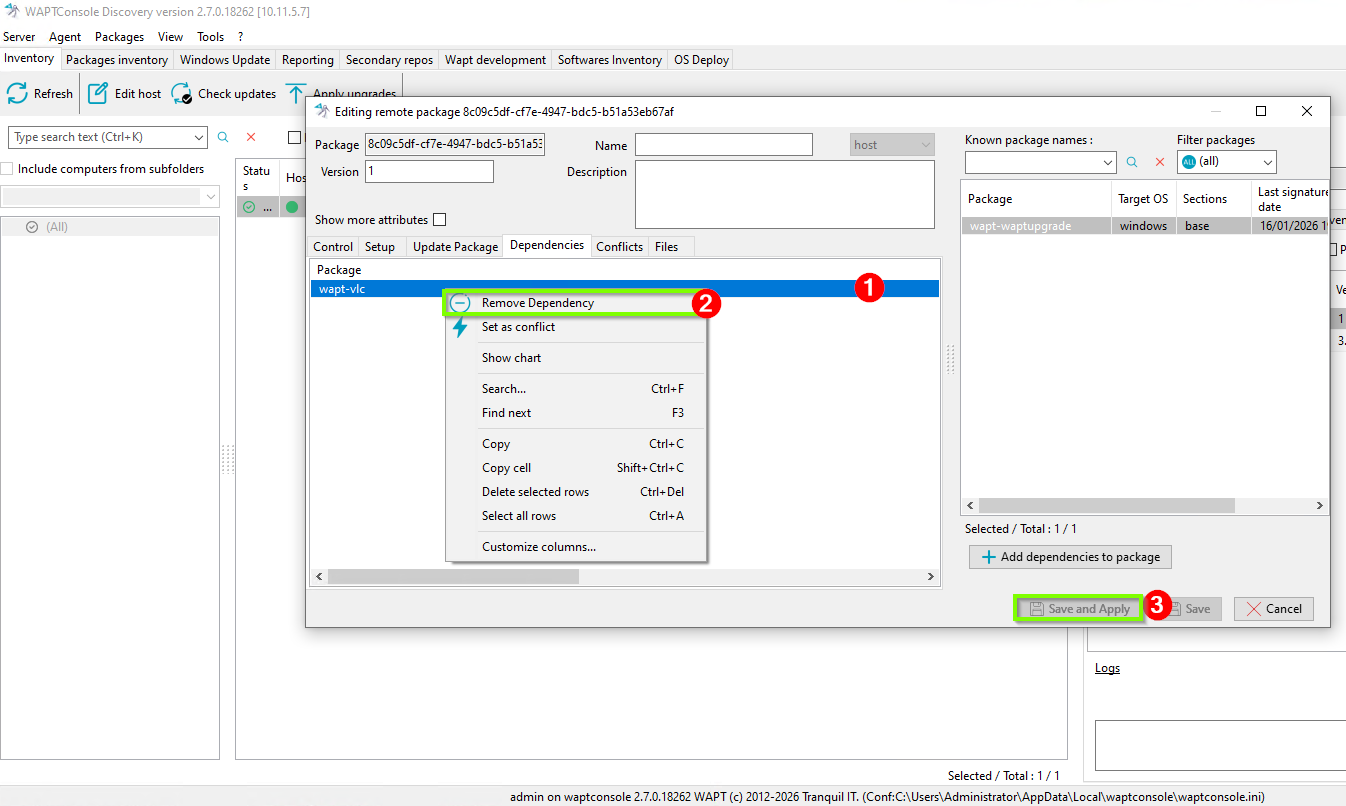
The package dependency has now been removed, and the machine will no longer attempt to reinstall the package automatically.
6.2. Uninstall the package from a host
Go on the Inventory tab. (1)
Select the machine from which you want to remove a software package (e.g., wapt-vlc). (2)
Navigate to the Host packages. (3)
Select the package you want to remove from the list (e.g., wapt-vlc). (4)
Right-Click → Uninstall packages. (5)
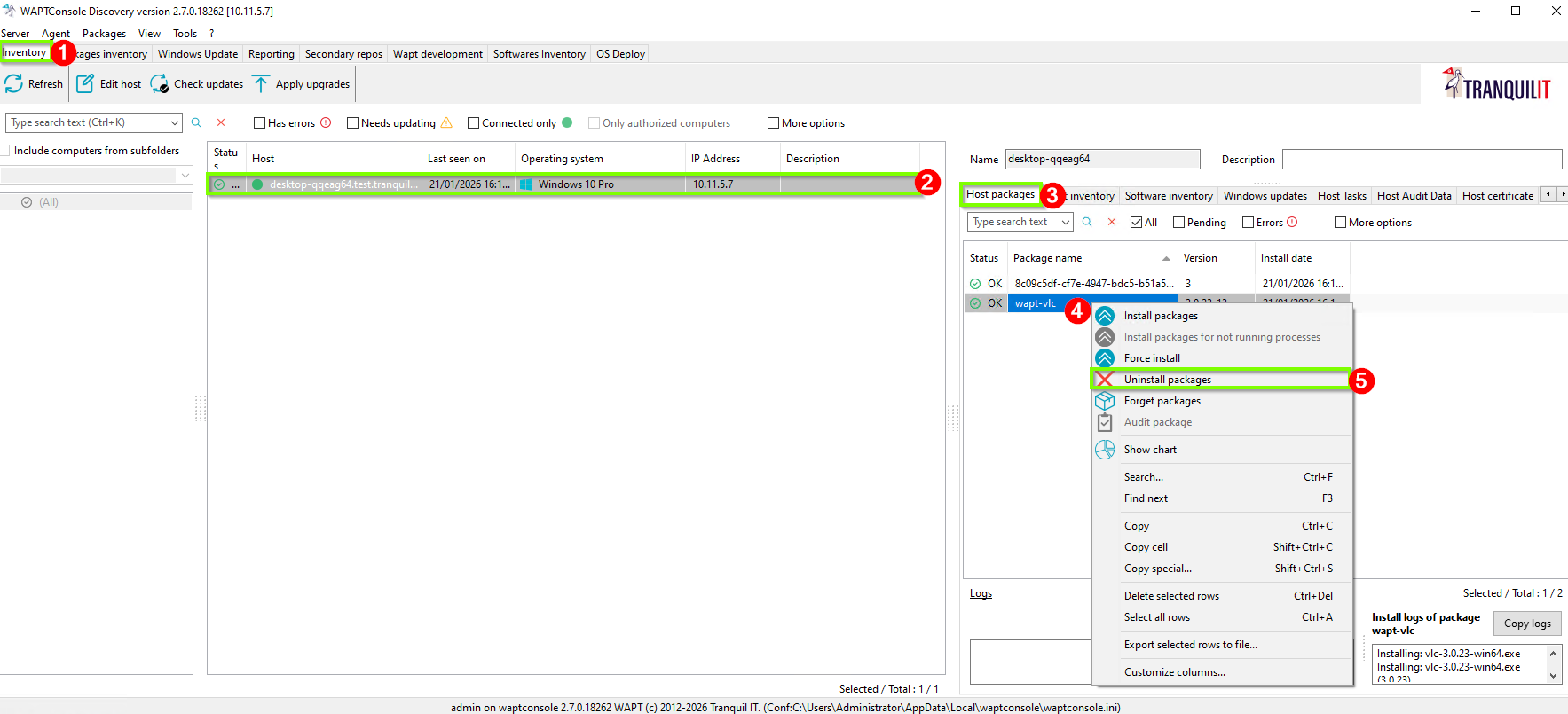
You can follow the progress in the Host Tasks tab.
Return on the Host packages, Refresh the waptconsole. The package has disapear.
Congratulations! You’ve successfully remove a depedancy and uninstall a package on a machine.